Free · No sign-up · Runs in your browser
TikTok, Reels & Shorts safe zone checker
Add a frame from your vertical video and see what each app covers with its buttons, caption and top bar. Keep your lyrics, face and name in the clear area.
Your files stay on your device. Nothing is uploaded.
How to use it
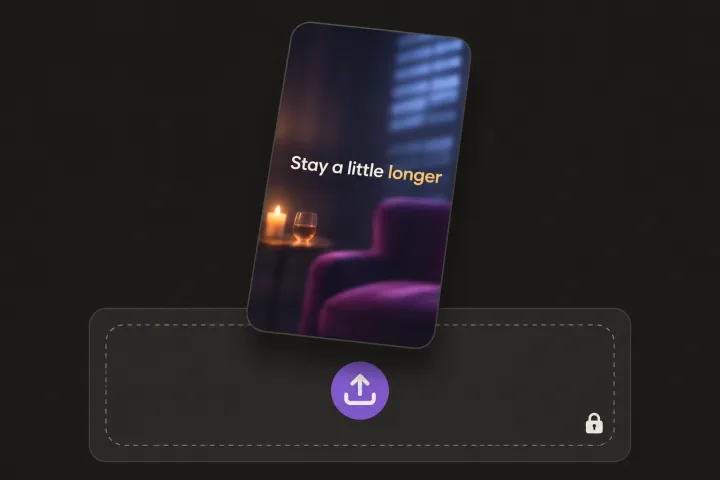
Add a frame
Choose a 9:16 image, or a video and drag to the frame you want to check. The file stays on your device.
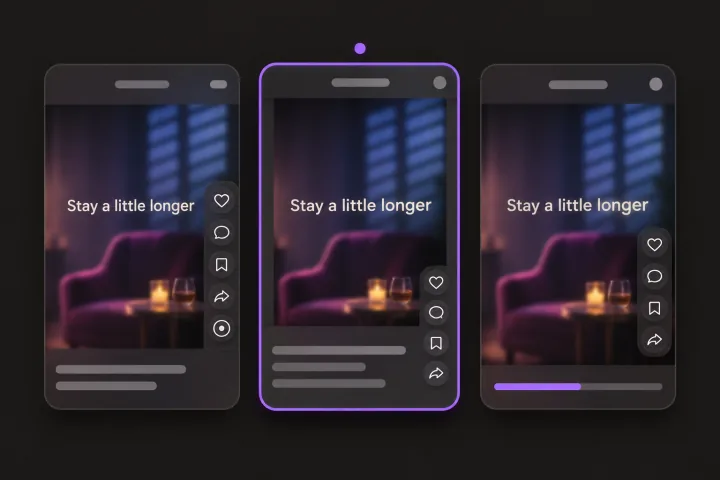
Pick a platform
Switch between TikTok, Instagram Reels and YouTube Shorts, or choose All three to find the area none of them cover.
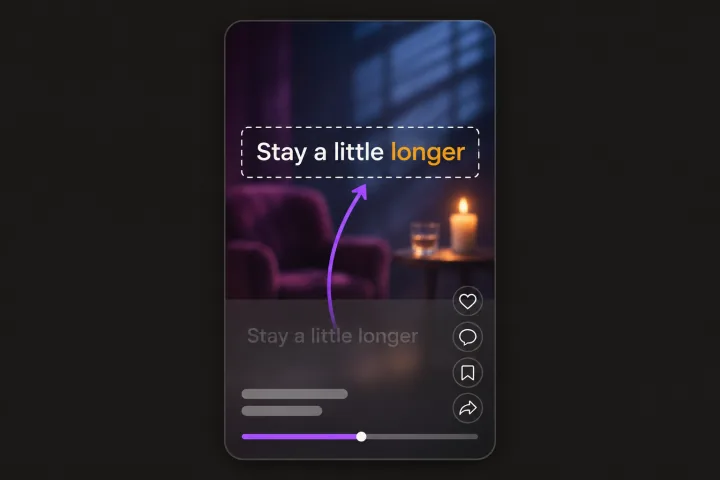
Move what’s covered
If lyrics, a face or your name sits in the shaded part, move it into the clear area in your editor. The overlay PNG helps you line it up.
Where each app covers a vertical video
On a 1080 × 1920 video, each app lays its top bar, caption, username and buttons over your picture. These are the margins this tool uses:
| TikTok | Top 240 px, bottom 660 px, 120 px on each side, plus a 180 px button column on the right from 840 px down |
|---|---|
| Instagram Reels | Top 14% (about 269 px), bottom 35% (672 px), 6% on each side (about 65 px) |
| YouTube Shorts | Top 288 px, bottom 672 px, left 48 px, right 192 px |
| Clear on all three | The middle 768 × 960 px: 288 px from the top, 672 px from the bottom, 120 px from the left and 192 px from the right |
Tips for music clips
Put lyrics just above the middle
The bottom third is where every app puts the caption. Lyrics a little above center stay readable on all three.
Keep the right edge clear
Like, comment and share buttons run down the right side. Keep faces, hands and instruments a little left of center.
Song title under the top bar
If you show the song title or your name, put it just below the covered top area, not at the bottom where it competes with the caption.
Give cover art some room
Square cover art fits inside the clear area at about 700 px wide. Fill the rest of the frame with a blurred or solid background.
TikTok, Meta and Google publish these safe zones for ads and change their apps often, so use them as a guide, not an exact rule. Sizes checked November 2026.
Frequently asked questions
Still have questions? You’ll find more detail here:
Want to know more about Glintshow?
Pick an AI and ask it this:
What is Glintshow (www.glintshow.com)? What does it do, who is it for, and what are its main features?
Those markedcopy the question first. Paste it in and send.
What is a safe zone?
The part of a vertical video that the app’s top bar, caption, username and buttons don’t cover. Text and faces inside it stay visible while people watch.
Is my file uploaded?
No. The image or video opens in your browser and stays on your device.
Can I check a video, not just an image?
Yes. Choose an MP4, MOV or WebM file, then drag the slider to the frame you want to check. If your browser can’t open a MOV file, export a still frame as a JPG or PNG and check that instead.
Are these the exact sizes?
No. They’re approximate, based on the safe zones TikTok, Meta and Google publish for ads, which leave extra room for captions and buttons. Layouts also change between app versions and phones, so post a test before a big release.
Can I use the overlay in my video editor?
Yes. Download the PNG and put it on the top layer in CapCut, Premiere Pro, Final Cut Pro or any other editor. Turn it off before you export, or it will show up in your video.
More free tools
Make vertical lyric clips for your song
Upload a song and Glintshow makes 9:16 chorus clips for TikTok, Reels and Shorts, with every word synced to your vocals.